| --- |
| layout: dev |
| title: Setup Development Env |
| categories: development |
| permalink: /development/dev_env.html |
| --- |
| |
| Developers want to run Kylin test cases or applications at their development machine. |
| |
| By following this tutorial, you will be able to build Kylin test cubes by running a specific test case, and you can further run other test cases against the cubes having been built. |
| |
| ## Environment on the Hadoop CLI |
| |
| Off-Hadoop-CLI installation requires you having a hadoop CLI machine (or a hadoop sandbox) as well as your local develop machine. To make things easier we strongly recommend you starting with running Kylin on a hadoop sandbox. In the following tutorial we'll go with **Hortonworks® Sandbox 2.4.0.0-169**, you can download it from [Hortonworks download page](https://hortonworks.com/downloads/#sandbox), expand the "Hortonworks Sandbox Archive" link, and then search "HDP® 2.4 on Hortonworks Sandbox" to download. It is recommended that you provide enough memory to your sandbox vm, 8G or more is preferred. |
| **Tips:** Use HDP-2.4.0.0.169 sandbox and deploy it with 10GB memory or more will be better. Some newer version HDP sandbox use docker deploy their cluster service and wraped in virual machine. You need to upload you project into docker container to run integration test, which doesn't convenient. Higher memory will reduce the possibility that virtual machine kill the test process. |
| |
| ### Start Hadoop |
| |
| After start the virtual machine, you can login as root. |
| |
| In Hortonworks sandbox, ambari helps to launch hadoop: |
| |
| {% highlight Groff markup %} |
| ambari-agent start |
| ambari-server start |
| {% endhighlight %} |
| |
| And reset the password of ambari user admin to `admin`: |
| |
| {% highlight Groff markup %} |
| ambari-admin-password-reset |
| {% endhighlight %} |
| |
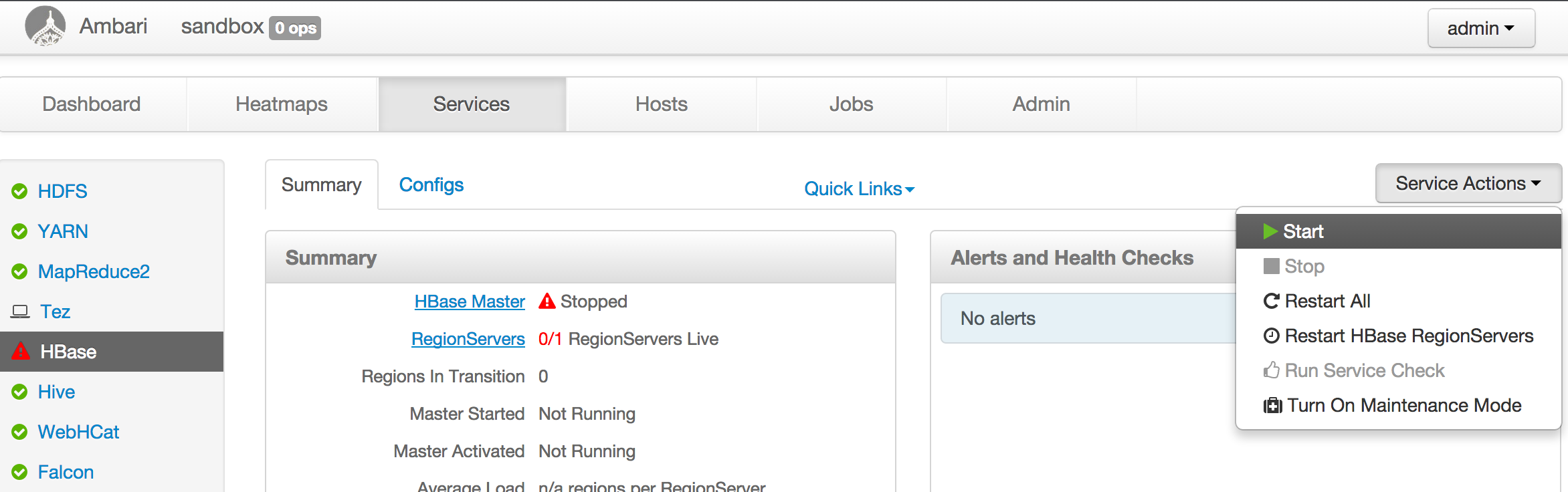
| With both command successfully run you can login ambari home page as admin at <http://yoursandboxip:8080> to check everything's status. By default ambari disables HBase, you need to manually start the `HBase` service. |
|  |
| |
| For other hadoop distribution, basically start the hadoop cluster, make sure HDFS, YARN, Hive, HBase are running. |
| |
| Note: |
| |
| * You may need to adjust the YARN configuration, allocating 3-4GB memory to YARN resource manager. |
| * The JDK in the sandbox VM might be old, please manually upgrade to Java 8 (Kyin 2.5 requires Java 8). Relink the orginal JAVA_HOME to an new one will change the jdk version for every user. Otherwise, you may encounter `UnsupportedClassVersionError` exception. Here are some mails about this problem: [spark task error occurs when run IT in sanbox](https://lists.apache.org/thread.html/46eb7e4083fd25a461f09573fc4225689e61c0d8150463a2c0eb65ef@%3Cdev.kylin.apache.org%3E) |
| **Tips:** Here is a tutorial about sandbox will be helpful. [Learning the Ropes of the HDP Sandbox](https://hortonworks.com/tutorial/learning-the-ropes-of-the-hortonworks-sandbox) |
| |
| ## Environment on the dev machine |
| |
| |
| ### Install Maven |
| |
| The latest maven can be found at <http://maven.apache.org/download.cgi>, we create a symbolic so that `mvn` can be run anywhere. |
| |
| {% highlight Groff markup %} |
| cd ~ |
| wget http://xenia.sote.hu/ftp/mirrors/www.apache.org/maven/maven-3/3.2.5/binaries/apache-maven-3.2.5-bin.tar.gz |
| tar -xzvf apache-maven-3.2.5-bin.tar.gz |
| ln -s /root/apache-maven-3.2.5/bin/mvn /usr/bin/mvn |
| {% endhighlight %} |
| |
| ### Install Spark |
| |
| Manually install the Spark binary in in a local folder like /usr/local/spark. You need to check what's the right version for your Kylin version, and then get the download link from Apache Spark website. Kylin 2.3 - 2.4 requires Spark 2.1, Kylin 2.5 requires Spark 2.3.2; For example: |
| |
| |
| {% highlight Groff markup %} |
| wget -O /tmp/spark-2.1.2-bin-hadoop2.7.tgz https://archive.apache.org/dist/spark/spark-2.1.2/spark-2.1.2-bin-hadoop2.7.tgz |
| cd /usr/local |
| tar -zxvf /tmp/spark-2.1.2-bin-hadoop2.7.tgz |
| ln -s spark-2.1.2-bin-hadoop2.7 spark |
| {% endhighlight %} |
| |
| |
| Create local temp folder for hbase client (if it doesn't exist): |
| |
| {% highlight Groff markup %} |
| mkdir -p /hadoop/hbase/local/jars |
| chmod 777 /hadoop/hbase/local/jars |
| {% endhighlight %} |
| |
| ### Compile |
| |
| First clone the Kylin project to your local: |
| |
| {% highlight Groff markup %} |
| git clone https://github.com/apache/kylin.git |
| {% endhighlight %} |
| |
| Install Kylin artifacts to the maven repository. |
| |
| {% highlight Groff markup %} |
| mvn clean install -DskipTests |
| {% endhighlight %} |
| |
| ### Modify local configuration |
| |
| Local configuration must be modified to point to your hadoop sandbox (or CLI) machine. |
| |
| * In **examples/test_case_data/sandbox/kylin.properties** |
| * Find `sandbox` and replace with your hadoop hosts (if you're using HDP sandbox, this can be skipped) |
| * Find `kylin.job.use-remote-cli` and change it to "true" (in code repository the default is false, which assume running it on hadoop CLI) |
| * Find `kylin.job.remote.cli.username` and `kylin.job.remote.cli.password`, fill in the user name and password used to login hadoop cluster for hadoop command execution; If you're using HDP sandbox, the default username is `root` and password is `hadoop`. |
| |
| * In **examples/test_case_data/sandbox** |
| * For each configuration xml file, find all occurrences of `sandbox` and `sandbox.hortonworks.com`, replace with your hadoop hosts; (if you're using HDP sandbox, this can be skipped) |
| |
| An alternative to the host replacement is updating your `hosts` file to resolve `sandbox` and `sandbox.hortonworks.com` to the IP of your sandbox machine. |
| |
| ### Run unit tests |
| Run unit tests to validate basic function of each classes. |
| |
| {% highlight Groff markup %} |
| mvn test -fae -Dhdp.version=<hdp-version> -P sandbox |
| {% endhighlight %} |
| |
| ### Run integration tests |
| Before actually running integration tests, need to run some end-to-end cube building jobs for test data population, in the meantime validating cubing process. Then comes with the integration tests. |
| |
| It might take a while (maybe two hours), please keep patient and smooth network. |
| |
| {% highlight Groff markup %} |
| mvn verify -fae -Dhdp.version=<hdp-version> -P sandbox |
| {% endhighlight %} |
| |
| To learn more about test, please refer to [How to test](/development/howto_test.html). |
| |
| ### Launch Kylin Web Server locally |
| |
| Copy server/src/main/webapp/WEB-INF to webapp/app/WEB-INF |
| |
| {% highlight Groff markup %} |
| cp -r server/src/main/webapp/WEB-INF webapp/app/WEB-INF |
| {% endhighlight %} |
| |
| Download JS for Kylin web GUI. `npm` is part of `Node.js`, please search about how to install it on your OS. |
| |
| {% highlight Groff markup %} |
| cd webapp |
| npm install -g bower |
| bower --allow-root install |
| {% endhighlight %} |
| |
| If you encounter network problem when run "bower install", you may try: |
| |
| {% highlight Groff markup %} |
| git config --global url."git://".insteadOf https:// |
| {% endhighlight %} |
| |
| If errors occur during installing Kylin's frontend dependencies due to network latency or some packages not obtainable by default registry, please refer to [How to Set up Frontend Registry](/development/howto_setup_frontend_registry.html) |
| |
| Note, if on Windows, after install bower, need to add the path of "bower.cmd" to system environment variable 'PATH', and then run: |
| |
| {% highlight Groff markup %} |
| bower.cmd --allow-root install |
| {% endhighlight %} |
| |
| In IDE, launch `org.apache.kylin.rest.DebugTomcat`. Please set the path of "server" module as the "Working directory", set "kylin-server" for "Use classpath of module", and check "Include dependencies with 'Provided' scope" option in IntelliJ IDEA 2018. If you're using IntelliJ IDEA 2017 and older, you need modify "server/kylin-server.iml" file, replace all "PROVIDED" to "COMPILE", otherwise an "java.lang.NoClassDefFoundError: org/apache/catalina/LifecycleListener" error may be thrown.. |
| |
| You may also need to tune the VM options: |
| |
| ``` |
| -Dhdp.version=2.4.0.0-169 -DSPARK_HOME=/usr/local/spark -Dkylin.hadoop.conf.dir=/workspace/kylin/examples/test_case_data/sandbox -Xms800m -Xmx800m -XX:PermSize=64M -XX:MaxNewSize=256m -XX:MaxPermSize=128m |
| ``` |
| |
| If you worked with Kerberized Hadoop Cluster, the additional VM options should be set: |
| |
| ``` |
| -Djava.security.krb5.conf=/etc/krb5.conf -Djava.security.krb5.principal=kylin -Djava.security.krb5.keytab=/path/to/kylin/keytab |
| ``` |
| |
| And Hadoop environment variable: |
| |
| ``` |
| HADOOP_USER_NAME=root |
| ``` |
| |
| By default Kylin server will listen on 7070 port; If you want to use another port, please specify it as a parameter when run `DebugTomcat`. |
| |
| Check Kylin Web at `http://localhost:7070/kylin` (user:ADMIN, password:KYLIN) |
| |
| |
| ## Setup IDE code formatter |
| |
| In case you're writting code for Kylin, you should make sure that your code in expected formats. |
| |
| For Eclipse users, just format the code before committing the code. |
| |
| For intellij IDEA users, you have to do a few more steps: |
| |
| 1. Install "Eclipse Code Formatter" and use "org.eclipse.jdt.core.prefs" and "org.eclipse.jdt.ui.prefs" in core-common/.settings to configure "Eclipse Java Formatter config file" and "Import order" |
| |
|  |
| |
| 2. Go to Preference => Code Style => Java, set "Scheme" to Default, and set both "Class count to use import with '\*'" and "Names count to use static import with '\*'" to 99. |
| |
|  |
| |
| 3. Disable intellij IDEA's "Optimize imports on the fly" |
| |
|  |
| |
| 3. Format the code before committing the code. |
| |
| ## Setup IDE license header template |
| |
| Each source file should include the following Apache License header |
| {% highlight Groff markup %} |
| Licensed to the Apache Software Foundation (ASF) under one |
| or more contributor license agreements. See the NOTICE file |
| distributed with this work for additional information |
| regarding copyright ownership. The ASF licenses this file |
| to you under the Apache License, Version 2.0 (the |
| "License"); you may not use this file except in compliance |
| with the License. You may obtain a copy of the License at |
| |
| http://www.apache.org/licenses/LICENSE-2.0 |
| |
| Unless required by applicable law or agreed to in writing, software |
| distributed under the License is distributed on an "AS IS" BASIS, |
| WITHOUT WARRANTIES OR CONDITIONS OF ANY KIND, either express or implied. |
| See the License for the specific language governing permissions and |
| limitations under the License. |
| {% endhighlight %} |
| |
| The checkstyle plugin will check the header rule when packaging also. The license file locates under `dev-support/checkstyle-apache-header.txt`. To make it easy for developers, please add the header as `Copyright Profile` and set it as default for Kylin project. |
|  |
