| # Publish your own nuget package |
| In this doc, we will introduce how to package and publish your own nuget package. Note that this will include the packaging and release of the two packages. |
| |
| ## Package |
| ### Step 1: Rename |
| Rename the following files/directories, where PACKAGE_NAME is the package name you expect. |
| |
| Note that this name should be unique, otherwise it will be rejected. You can search at [nuget.org](https://www.nuget.org/) to confirm whether the name is unique. |
| - `./src/Apache.IoTDB` => `./src/PACKAGE_NAME` |
| - `./src/Apache.IoTDB/Apache.IoTDB.csproj` => `./src/PACKAGE_NAME/PACKAGE_NAME.csproj` |
| - `./src/Apache.IoTDB.Rpc.Generated` => `./src/PACKAGE_NAME.Rpc.Generated` |
| - `./src/Apache.IoTDB.Rpc.Generated/Apache.IoTDB.Rpc.Generated.csproj` => `./src/PACKAGE_NAME.Rpc.Generated/PACKAGE_NAME.Rpc.Generated.csproj` |
| |
| Besides, you also need to modify the configuration in `./src/Apache.IoTDB/Apache.IoTDB.csproj` to ensure that the project references are correct. |
| ``` xml |
| <ProjectReference Include="..\Apache.IoTDB.Rpc.Generated\Apache.IoTDB.Rpc.Generated.csproj" /> |
| ``` |
| to |
| ``` xml |
| <ProjectReference Include="..\PACKAGE_NAME.Rpc.Generated\PACKAGE_NAME.Rpc.Generated.csproj" /> |
| ``` |
| |
| ### Step 2: Add package information |
| Modify `PACKAGE_NAME.csproj` to add package information, including version number, author, company, package description information, etc. |
| |
| The commonly used ones are as follows, you can find a complete list in [NuGet pack and restore as MSBuild targets](https://docs.microsoft.com/en-us/nuget/reference/msbuild-targets#pack-target). |
| |
| - `Version`, a specific version number in the form Major.Minor.Patch\[-Suffix\] where -Suffix identifies [pre-release versions](https://docs.microsoft.com/en-us/nuget/create-packages/prerelease-packages). If not specified, the default value is 1.0.0. |
| - `Authors`, author and owner information. If not specified, the default value is AssemblyName. |
| - `Company`, your company name. If not specified, the default value is AssemblyName. |
| - `PackageDescription`, A long description of the package for UI display. |
| |
| ``` xml |
| <PropertyGroup> |
| <Version>0.12.4</Version> |
| <Authors>Alice, Bob, Carol</Authors> |
| <Company>Test Inc.</Company> |
| <PackageDescription>A test nuget package.</PackageDescription> |
| </PropertyGroup> |
| ``` |
| |
| ### Step 3: Build package with dotnet pack |
| Execute the following commands in the same directory of `PACKAGE_NAME.csproj` and `PACKAGE_NAME.Rpc.Generated.csproj` to pack. You can find the generated package file `PACKAGE_NAME.VERSION.nupkg` in `bin/`. |
| |
| #### Debug |
| ``` bash |
| dotnet pack PACKAGE_NAME.csproj --configuration debug |
| ``` |
| |
| #### Release |
| ``` bash |
| dotnet pack PACKAGE_NAME.csproj --configuration release |
| ``` |
| |
| ## Publish |
| ### Web portal: use the Upload Package tab on nuget.org |
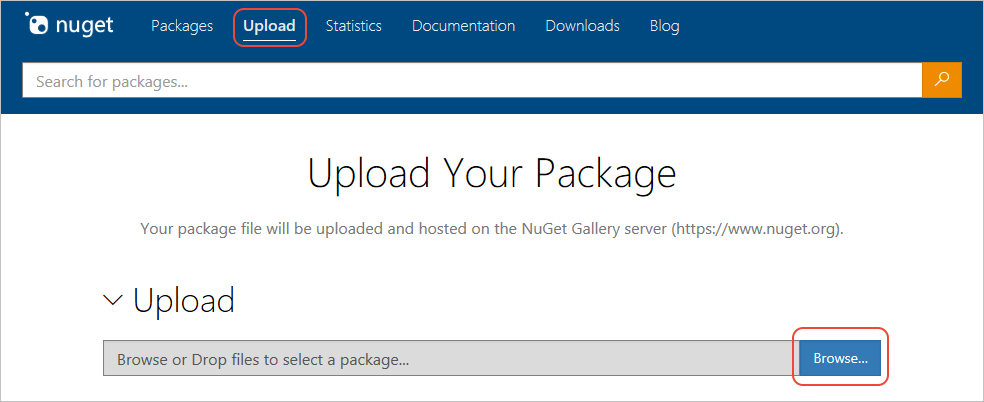
| 1. Select Upload on the top menu of nuget.org and browse to the package location. |
|  |
| |
| 2. nuget.org tells you if the package name is available. If it isn't, change the package identifier in your project, rebuild, and try the upload again. |
| |
| 3. If the package name is available, nuget.org opens a Verify section in which you can review the metadata from the package manifest. To change any of the metadata, edit your project (project file or `.nuspec` file), rebuild, recreate the package, and upload again. |
| |
| 4. When all the information is ready, select the Submit button. |
| |
| ### Command line |
| #### Step 1: Sign in & Create API keys |
| 1. [Sign into your nuget.org](https://www.nuget.org/) account or create an account if you don't have one already. |
| |
| 2. Select your user name (on the upper right), then select **API Keys**. |
| |
| 3. Select **Create**, provide a name for your key, select **Select Scopes > Push**. Enter **\*** for **Glob pattern**, then select **Create**. (See below for more about scopes.) |
| |
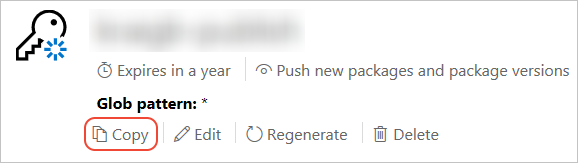
| 4. Once the key is created, select **Copy** to retrieve the access key you need in the CLI: |
|  |
| |
| 5. **Important**: Save your key in a secure location because you cannot copy the key again later on. If you return to the API key page, you need to regenerate the key to copy it. You can also remove the API key if you no longer want to push packages via the CLI. |
| |
| #### Step 2: Publish with dotnet nuget push |
| 1. Change to the directory containing the `.nupkg` file (`bin/Debug/` or `bin/Release/`). |
| 2. Execute the following command, specifying your package name and replacing the key value with your API key: |
| ``` .NET CLI |
| dotnet nuget push PACKAGE_NAME.VERSION.nupkg --api-key YOUR_API_KEY --source https://api.nuget.org/v3/index.json |
| ``` |
| |
| ## References |
| [MS Docs: Create a NuGet package](https://docs.microsoft.com/en-us/nuget/create-packages/creating-a-package-dotnet-cli) |
| |
| [MS Docs: Publishing packages](https://docs.microsoft.com/en-us/nuget/nuget-org/publish-a-package) |
