| --- |
| title: aws-lambda |
| keywords: |
| - Apache APISIX |
| - Plugin |
| - AWS Lambda |
| - aws-lambda |
| description: The aws-lambda Plugin integrates APISIX with AWS Lambda and Amazon API Gateway, supporting authentication via IAM access keys and API keys. |
| --- |
| |
| <!-- |
| # |
| # Licensed to the Apache Software Foundation (ASF) under one or more |
| # contributor license agreements. See the NOTICE file distributed with |
| # this work for additional information regarding copyright ownership. |
| # The ASF licenses this file to You under the Apache License, Version 2.0 |
| # (the "License"); you may not use this file except in compliance with |
| # the License. You may obtain a copy of the License at |
| # |
| # http://www.apache.org/licenses/LICENSE-2.0 |
| # |
| # Unless required by applicable law or agreed to in writing, software |
| # distributed under the License is distributed on an "AS IS" BASIS, |
| # WITHOUT WARRANTIES OR CONDITIONS OF ANY KIND, either express or implied. |
| # See the License for the specific language governing permissions and |
| # limitations under the License. |
| # |
| --> |
| |
| <head> |
| <link rel="canonical" href="https://docs.api7.ai/hub/aws-lambda" /> |
| </head> |
| |
| import Tabs from '@theme/Tabs'; |
| import TabItem from '@theme/TabItem'; |
| |
| ## Description |
| |
| The `aws-lambda` Plugin eases the integration of APISIX with [AWS Lambda](https://aws.amazon.com/lambda/) and [Amazon API Gateway](https://aws.amazon.com/api-gateway/) to proxy for other AWS services. |
| |
| The Plugin supports authentication and authorization with AWS via IAM user credentials and API Gateway's API key. |
| |
| ## Attributes |
| |
| | Name | Type | Required | Default | Valid values | Description | |
| |------------------------------|---------|----------|---------------|--------------|--------------------------------------------------------------------------------------------------------------------------------------------------------------------| |
| | function_uri | string | True | | | AWS Lambda function URL or Amazon API Gateway endpoint that triggers the Lambda function. | |
| | authorization | object | False | | | Credentials used in authentication and authorization on AWS to invoke Lambda function. | |
| | authorization.apikey | string | False | | | API key for the REST API Gateway when API key is selected as the security mechanism. | |
| | authorization.iam | object | False | | | IAM credentials to be authenticated using [AWS Signature Version 4](https://docs.aws.amazon.com/IAM/latest/UserGuide/reference_aws-signing.html) and authorized. | |
| | authorization.iam.accesskey | string | False | | | IAM user access key. Required when `authorization.iam` is configured. | |
| | authorization.iam.secretkey | string | False | | | IAM user secret access key. Required when `authorization.iam` is configured. | |
| | authorization.iam.aws_region | string | False | "us-east-1" | | AWS region where the request is being sent. | |
| | authorization.iam.service | string | False | "execute-api" | | Service receiving the request. To integrate with AWS API Gateway, set to `execute-api`. To integrate with Lambda function directly, set to `lambda`. | |
| | timeout | integer | False | 3000 | [100,...] | Proxy request timeout in milliseconds. | |
| | ssl_verify | boolean | False | true | | If true, perform SSL verification. | |
| | keepalive | boolean | False | true | | If true, keep the connection alive for reuse. | |
| | keepalive_pool | integer | False | 5 | [1,...] | Maximum number of connections in the keepalive pool. | |
| | keepalive_timeout | integer | False | 60000 | [1000,...] | Time for connection to remain idle without closing in milliseconds. | |
| |
| ## Examples |
| |
| The examples below demonstrate how you can configure `aws-lambda` for different scenarios. |
| |
| To follow along the examples, please first log into your AWS console and create a Lambda function with any runtime. You do not need to customize the function and by default, the function should return `Hello from Lambda!` when called. |
| |
| :::note |
| |
| You can fetch the `admin_key` from `config.yaml` and save to an environment variable with the following command: |
| |
| ```bash |
| admin_key=$(yq '.deployment.admin.admin_key[0].key' conf/config.yaml | sed 's/"//g') |
| ``` |
| |
| ::: |
| |
| ### Invoke Lambda Function Securely using IAM Access Keys |
| |
| The following example demonstrates how you can integrate APISIX with the Lambda function and configure IAM access keys for authorization. The `aws-lambda` Plugin implements [AWS Signature Version 4](https://docs.aws.amazon.com/IAM/latest/UserGuide/reference_aws-signing.html) for IAM access keys. You will be first creating IAM access keys and the Lambda function URL on AWS console. |
| |
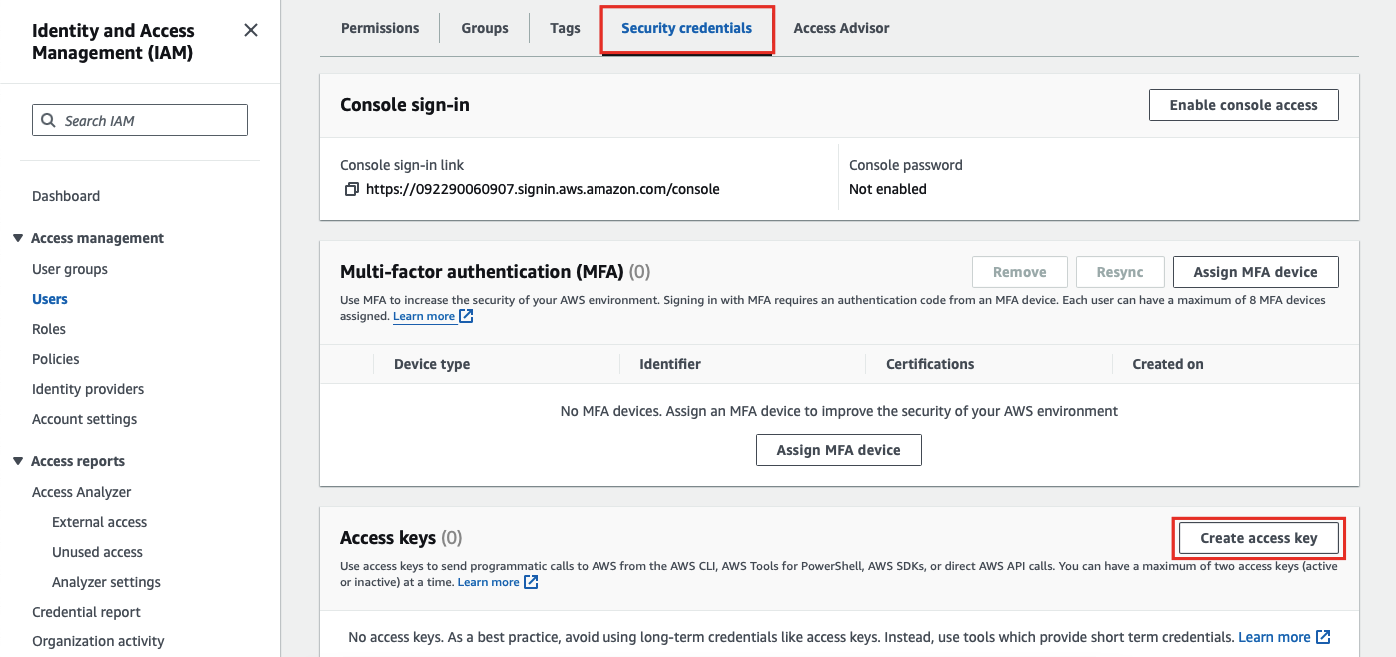
| For IAM access keys, go to **AWS Identity and Access Management (IAM)** and click into the user you would like to use for integration. |
| |
| Next, in the **Security credentials** tab, select **Create access key**: |
| |
|  |
| |
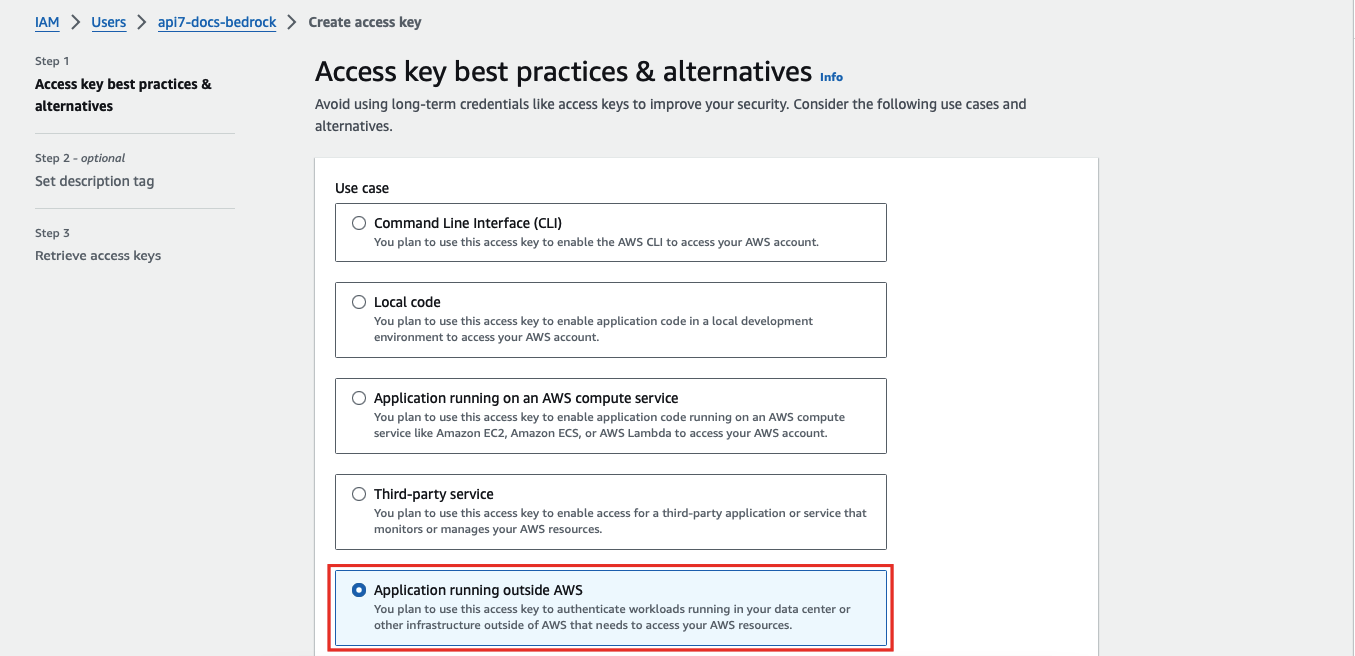
| Select **Application running outside AWS** as the use case: |
| |
|  |
| |
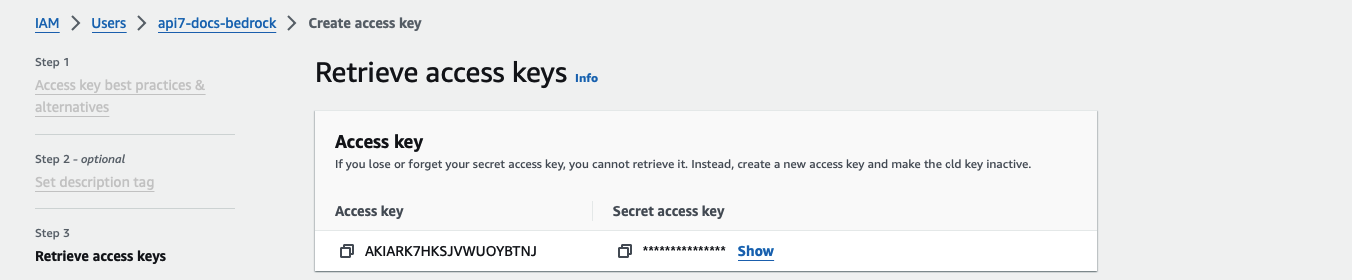
| Continue the credential creation and note down the access key and secret access key: |
| |
|  |
| |
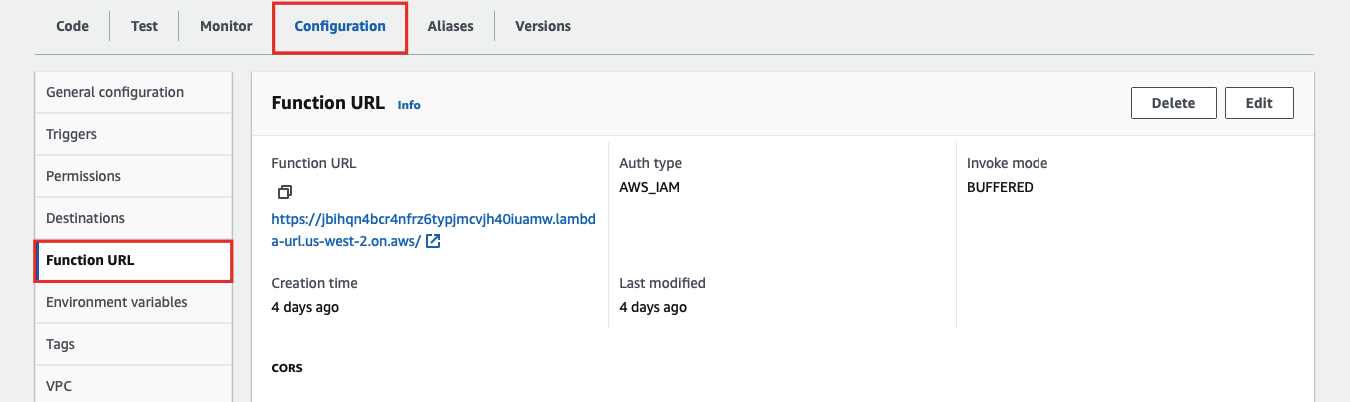
| To create the Lambda function URL, go to the **Configuration** tab of the Lambda function and under **Function URL**, create a function URL: |
| |
|  |
| |
| Finally, create a Route in APISIX with your function URL and IAM access keys: |
| |
| <Tabs |
| groupId="api" |
| defaultValue="admin-api" |
| values={[ |
| {label: 'Admin API', value: 'admin-api'}, |
| {label: 'ADC', value: 'adc'}, |
| {label: 'Ingress Controller', value: 'aic'} |
| ]}> |
| |
| <TabItem value="admin-api"> |
| |
| ```shell |
| curl "http://127.0.0.1:9180/apisix/admin/routes" -X PUT \ |
| -H "X-API-KEY: ${admin_key}" \ |
| -d '{ |
| "id": "aws-lambda-iam-route", |
| "uri": "/aws-lambda", |
| "plugins": { |
| "aws-lambda": { |
| "function_uri": "https://your-lambda-function-url.lambda-url.us-west-2.on.aws/", |
| "authorization": { |
| "iam": { |
| "accesskey": "YOUR_IAM_ACCESS_KEY", |
| "secretkey": "YOUR_IAM_SECRET_KEY", |
| "aws_region": "us-west-2", |
| "service": "lambda" |
| } |
| }, |
| "ssl_verify": false |
| } |
| } |
| }' |
| ``` |
| |
| </TabItem> |
| |
| <TabItem value="adc"> |
| |
| ```yaml title="adc.yaml" |
| services: |
| - name: aws-lambda-service |
| routes: |
| - name: aws-lambda-route |
| uris: |
| - /aws-lambda |
| plugins: |
| aws-lambda: |
| function_uri: https://your-lambda-function-url.lambda-url.us-west-2.on.aws/ |
| authorization: |
| iam: |
| accesskey: YOUR_IAM_ACCESS_KEY |
| secretkey: YOUR_IAM_SECRET_KEY |
| aws_region: us-west-2 |
| service: lambda |
| ``` |
| |
| Synchronize the configuration to the gateway: |
| |
| ```shell |
| adc sync -f adc.yaml |
| ``` |
| |
| </TabItem> |
| |
| <TabItem value="aic"> |
| |
| <Tabs |
| groupId="k8s-api" |
| defaultValue="gateway-api" |
| values={[ |
| {label: 'Gateway API', value: 'gateway-api'}, |
| {label: 'APISIX CRD', value: 'apisix-crd'} |
| ]}> |
| |
| <TabItem value="gateway-api"> |
| |
| ```yaml title="aws-lambda-ic.yaml" |
| apiVersion: apisix.apache.org/v1alpha1 |
| kind: PluginConfig |
| metadata: |
| namespace: aic |
| name: aws-lambda-plugin-config |
| spec: |
| plugins: |
| - name: aws-lambda |
| config: |
| function_uri: https://your-lambda-function-url.lambda-url.us-west-2.on.aws/ |
| authorization: |
| iam: |
| accesskey: YOUR_IAM_ACCESS_KEY |
| secretkey: YOUR_IAM_SECRET_KEY |
| aws_region: us-west-2 |
| service: lambda |
| ssl_verify: false |
| --- |
| apiVersion: gateway.networking.k8s.io/v1 |
| kind: HTTPRoute |
| metadata: |
| namespace: aic |
| name: aws-lambda-route |
| spec: |
| parentRefs: |
| - name: apisix |
| rules: |
| - matches: |
| - path: |
| type: Exact |
| value: /aws-lambda |
| filters: |
| - type: ExtensionRef |
| extensionRef: |
| group: apisix.apache.org |
| kind: PluginConfig |
| name: aws-lambda-plugin-config |
| ``` |
| |
| </TabItem> |
| |
| <TabItem value="apisix-crd"> |
| |
| ```yaml title="aws-lambda-ic.yaml" |
| apiVersion: apisix.apache.org/v2 |
| kind: ApisixRoute |
| metadata: |
| namespace: aic |
| name: aws-lambda-route |
| spec: |
| ingressClassName: apisix |
| http: |
| - name: aws-lambda-route |
| match: |
| paths: |
| - /aws-lambda |
| plugins: |
| - name: aws-lambda |
| enable: true |
| config: |
| function_uri: https://your-lambda-function-url.lambda-url.us-west-2.on.aws/ |
| authorization: |
| iam: |
| accesskey: YOUR_IAM_ACCESS_KEY |
| secretkey: YOUR_IAM_SECRET_KEY |
| aws_region: us-west-2 |
| service: lambda |
| ssl_verify: false |
| ``` |
| |
| </TabItem> |
| |
| </Tabs> |
| |
| Apply the configuration: |
| |
| ```shell |
| kubectl apply -f aws-lambda-ic.yaml |
| ``` |
| |
| </TabItem> |
| |
| </Tabs> |
| |
| Send a request to the Route: |
| |
| ```shell |
| curl -i "http://127.0.0.1:9080/aws-lambda" |
| ``` |
| |
| You should receive an `HTTP/1.1 200 OK` response with the following message: |
| |
| ```text |
| "Hello from Lambda!" |
| ``` |
| |
| ### Integrate with Amazon API Gateway Securely with API Key |
| |
| The following example demonstrates how you can integrate APISIX with Amazon API Gateway and configure the gateway to trigger the execution of Lambda function. |
| |
| To configure an API Gateway as a Lambda trigger, go to your Lambda function and select **Add trigger**: |
| |
| 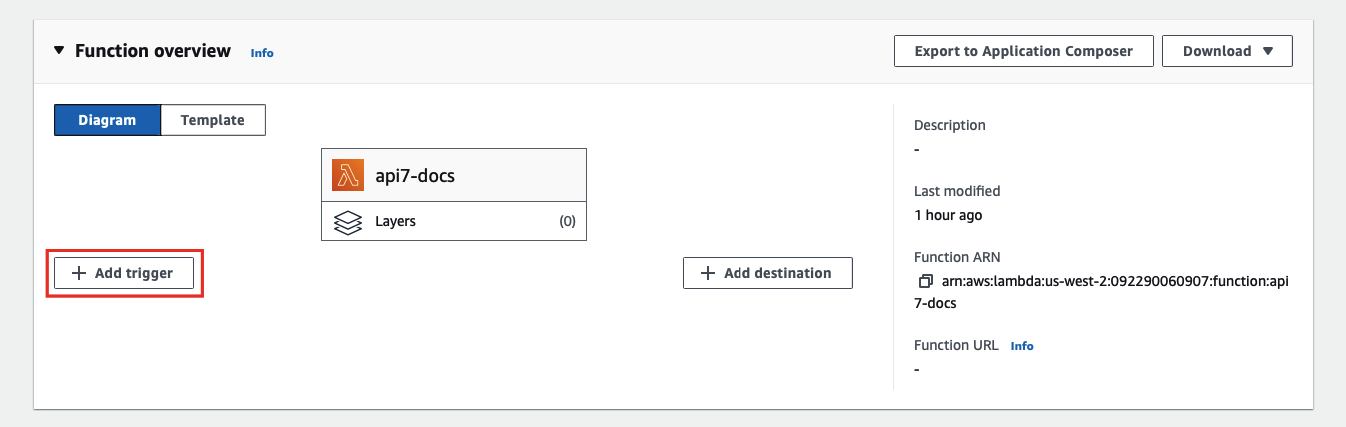 |
| |
| Next, select **API Gateway** as the trigger and **REST API** as the API type, and finish adding the trigger: |
| |
| <div style={{textAlign: 'center'}}> |
| <img |
| src="https://static.api7.ai/uploads/2024/04/25/4Bp9r3UP_rest-api-key.png" |
| alt="select REST to be the API type and secure the API with API key" |
| width="70%" |
| /> |
| </div> |
| <br /> |
| |
| :::info |
| |
| Amazon API Gateway supports HTTP APIs and REST APIs. API key support is available only for REST APIs, which is why this example uses a REST API trigger. |
| |
| ::: |
| |
| You should now be redirected back to the Lambda interface. To find the API key and gateway API endpoint, go to the **Configuration** tab of the Lambda function and under **Triggers**, you can find the details of the API Gateway: |
| |
| 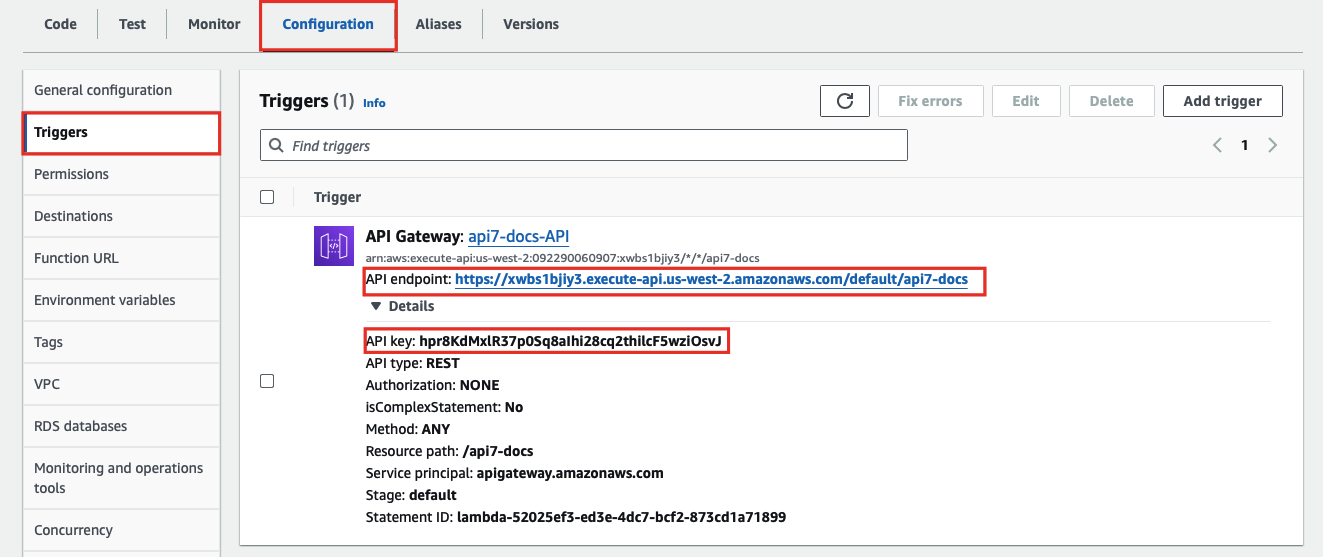 |
| |
| Finally, create a Route in APISIX with your gateway endpoint and API key: |
| |
| <Tabs |
| groupId="api" |
| defaultValue="admin-api" |
| values={[ |
| {label: 'Admin API', value: 'admin-api'}, |
| {label: 'ADC', value: 'adc'}, |
| {label: 'Ingress Controller', value: 'aic'} |
| ]}> |
| |
| <TabItem value="admin-api"> |
| |
| ```shell |
| curl "http://127.0.0.1:9180/apisix/admin/routes" -X PUT \ |
| -H "X-API-KEY: ${admin_key}" \ |
| -d '{ |
| "id": "aws-lambda-apikey-route", |
| "uri": "/aws-lambda", |
| "plugins": { |
| "aws-lambda": { |
| "function_uri": "https://your-api-id.execute-api.us-west-2.amazonaws.com/default/your-resource", |
| "authorization": { |
| "apikey": "YOUR_API_GATEWAY_API_KEY" |
| }, |
| "ssl_verify": false |
| } |
| } |
| }' |
| ``` |
| |
| </TabItem> |
| |
| <TabItem value="adc"> |
| |
| ```yaml title="adc.yaml" |
| services: |
| - name: aws-lambda-service |
| routes: |
| - name: aws-lambda-route |
| uris: |
| - /aws-lambda |
| plugins: |
| aws-lambda: |
| function_uri: https://your-api-id.execute-api.us-west-2.amazonaws.com/default/your-resource |
| authorization: |
| apikey: YOUR_API_GATEWAY_API_KEY |
| ssl_verify: false |
| ``` |
| |
| Synchronize the configuration to the gateway: |
| |
| ```shell |
| adc sync -f adc.yaml |
| ``` |
| |
| </TabItem> |
| |
| <TabItem value="aic"> |
| |
| <Tabs |
| groupId="k8s-api" |
| defaultValue="gateway-api" |
| values={[ |
| {label: 'Gateway API', value: 'gateway-api'}, |
| {label: 'APISIX CRD', value: 'apisix-crd'} |
| ]}> |
| |
| <TabItem value="gateway-api"> |
| |
| ```yaml title="aws-lambda-ic.yaml" |
| apiVersion: apisix.apache.org/v1alpha1 |
| kind: PluginConfig |
| metadata: |
| namespace: aic |
| name: aws-lambda-plugin-config |
| spec: |
| plugins: |
| - name: aws-lambda |
| config: |
| function_uri: https://your-api-id.execute-api.us-west-2.amazonaws.com/default/your-resource |
| authorization: |
| apikey: YOUR_API_GATEWAY_API_KEY |
| ssl_verify: false |
| --- |
| apiVersion: gateway.networking.k8s.io/v1 |
| kind: HTTPRoute |
| metadata: |
| namespace: aic |
| name: aws-lambda-route |
| spec: |
| parentRefs: |
| - name: apisix |
| rules: |
| - matches: |
| - path: |
| type: Exact |
| value: /aws-lambda |
| filters: |
| - type: ExtensionRef |
| extensionRef: |
| group: apisix.apache.org |
| kind: PluginConfig |
| name: aws-lambda-plugin-config |
| ``` |
| |
| </TabItem> |
| |
| <TabItem value="apisix-crd"> |
| |
| ```yaml title="aws-lambda-ic.yaml" |
| apiVersion: apisix.apache.org/v2 |
| kind: ApisixRoute |
| metadata: |
| namespace: aic |
| name: aws-lambda-apikey-route |
| spec: |
| ingressClassName: apisix |
| http: |
| - name: aws-lambda-apikey-route |
| match: |
| paths: |
| - /aws-lambda |
| plugins: |
| - name: aws-lambda |
| enable: true |
| config: |
| function_uri: https://your-api-id.execute-api.us-west-2.amazonaws.com/default/your-resource |
| authorization: |
| apikey: YOUR_API_GATEWAY_API_KEY |
| ssl_verify: false |
| ``` |
| |
| </TabItem> |
| |
| </Tabs> |
| |
| Apply the configuration: |
| |
| ```shell |
| kubectl apply -f aws-lambda-ic.yaml |
| ``` |
| |
| </TabItem> |
| |
| </Tabs> |
| |
| Send a request to the Route: |
| |
| ```shell |
| curl -i "http://127.0.0.1:9080/aws-lambda" |
| ``` |
| |
| You should receive an `HTTP/1.1 200 OK` response with the following message: |
| |
| ```text |
| "Hello from Lambda!" |
| ``` |
| |
| If your API key is invalid, you should receive an `HTTP/1.1 403 Forbidden` response. |
| |
| ### Forward Requests to Amazon API Gateway Sub-Paths |
| |
| The following example demonstrates how you can forward requests to a sub-path of the Amazon API Gateway API and configure the API to trigger the execution of Lambda function. |
| |
| Please follow the [previous example](#integrate-with-amazon-api-gateway-securely-with-api-key) to set up an API Gateway first. |
| |
| To create a sub-path, go to the **Configuration** tab of the Lambda function and under **Triggers**, click into the API Gateway: |
| |
|  |
| |
| Next, select **Create resource** to create a sub-path: |
| |
| 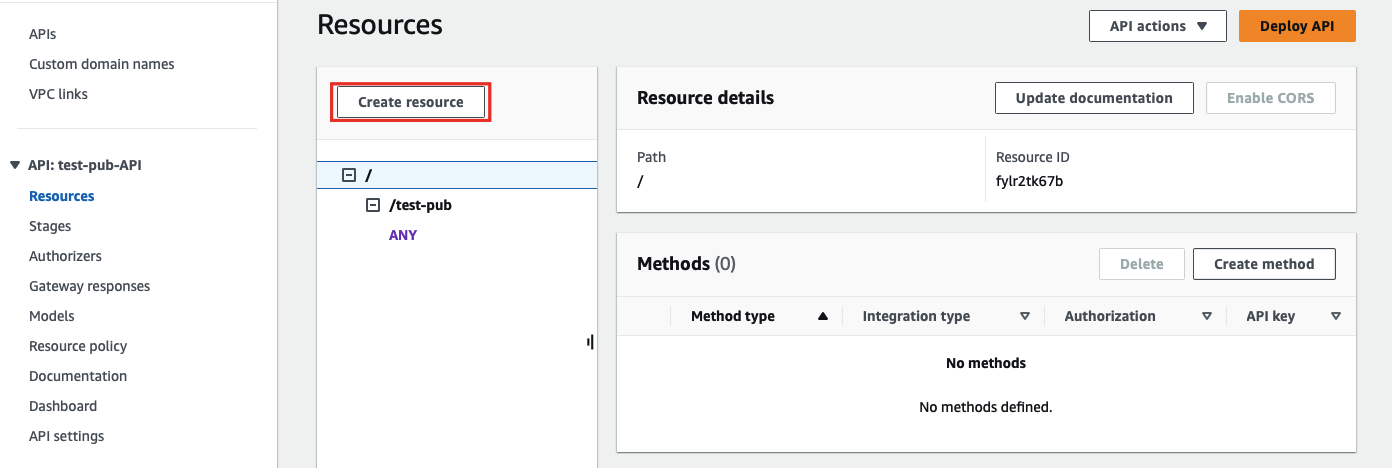 |
| |
| Enter the sub-path information and complete creation: |
| |
| <div style={{textAlign: 'center'}}> |
| <img |
| src="https://static.api7.ai/uploads/2024/04/26/7t1yiWjl_create-resource-2.png" |
| alt="complete resource creation" |
| width="70%" |
| /> |
| </div> |
| |
| Once redirected back to the main gateway console, you should see the newly created path. Select **Create method** to configure HTTP methods for the path and the associated action: |
| |
| 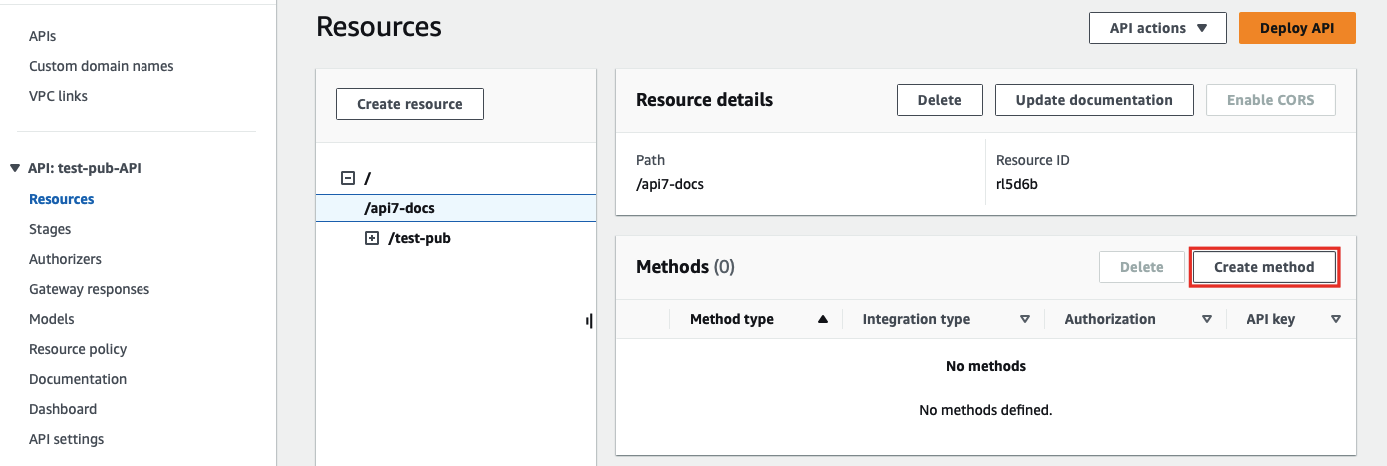 |
| |
| Select the allowed HTTP method in the dropdown. For the purpose of demonstration, this example continues to use the same Lambda function as the triggered action when the path is requested: |
| |
| <div style={{textAlign: 'center'}}> |
| <img |
| src="https://static.api7.ai/uploads/2024/04/26/vni7yS2q_create%20method%202.png" |
| alt="create method and lambda function" |
| width="70%" |
| /> |
| </div> |
| |
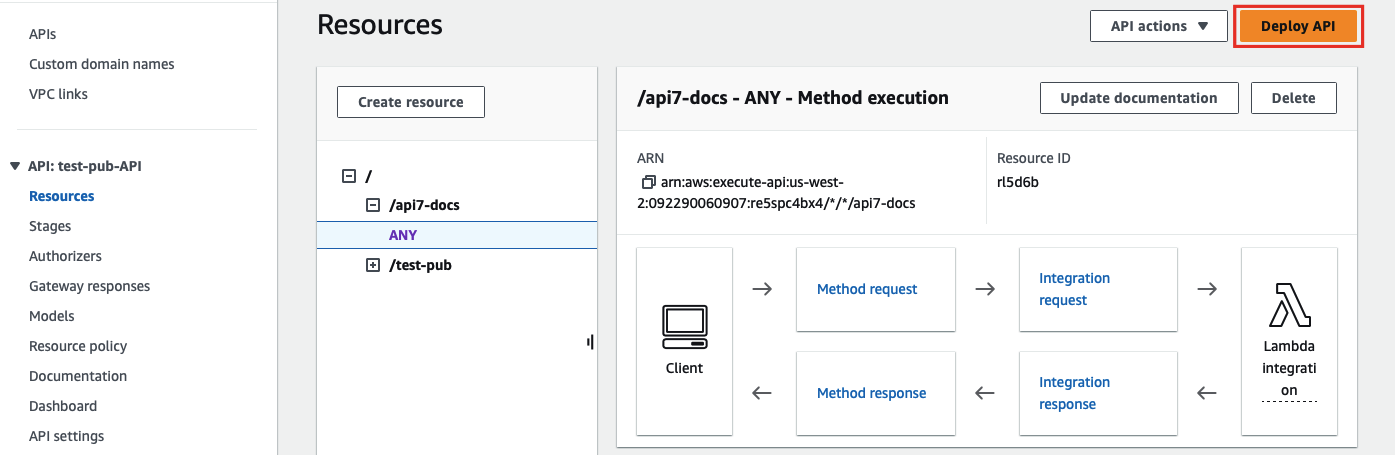
| Finish the method creation. Once redirected back to the main gateway console, click on **Deploy API** to deploy the path and method changes: |
| |
|  |
| |
| Finally, create a Route in APISIX with your gateway endpoint and API key: |
| |
| <Tabs |
| groupId="api" |
| defaultValue="admin-api" |
| values={[ |
| {label: 'Admin API', value: 'admin-api'}, |
| {label: 'ADC', value: 'adc'}, |
| {label: 'Ingress Controller', value: 'aic'} |
| ]}> |
| |
| <TabItem value="admin-api"> |
| |
| ```shell |
| curl "http://127.0.0.1:9180/apisix/admin/routes" -X PUT \ |
| -H "X-API-KEY: ${admin_key}" \ |
| -d '{ |
| "id": "aws-lambda-subpath-route", |
| "uri": "/aws-lambda/*", |
| "plugins": { |
| "aws-lambda": { |
| "function_uri": "https://your-api-id.execute-api.us-west-2.amazonaws.com/default", |
| "authorization": { |
| "apikey": "YOUR_API_GATEWAY_API_KEY" |
| }, |
| "ssl_verify": false |
| } |
| } |
| }' |
| ``` |
| |
| </TabItem> |
| |
| <TabItem value="adc"> |
| |
| ```yaml title="adc.yaml" |
| services: |
| - name: aws-lambda-service |
| routes: |
| - name: aws-lambda-subpath-route |
| uris: |
| - /aws-lambda/* |
| plugins: |
| aws-lambda: |
| function_uri: https://your-api-id.execute-api.us-west-2.amazonaws.com/default |
| authorization: |
| apikey: YOUR_API_GATEWAY_API_KEY |
| ssl_verify: false |
| ``` |
| |
| Synchronize the configuration to the gateway: |
| |
| ```shell |
| adc sync -f adc.yaml |
| ``` |
| |
| </TabItem> |
| |
| <TabItem value="aic"> |
| |
| <Tabs |
| groupId="k8s-api" |
| defaultValue="gateway-api" |
| values={[ |
| {label: 'Gateway API', value: 'gateway-api'}, |
| {label: 'APISIX CRD', value: 'apisix-crd'} |
| ]}> |
| |
| <TabItem value="gateway-api"> |
| |
| ```yaml title="aws-lambda-ic.yaml" |
| apiVersion: apisix.apache.org/v1alpha1 |
| kind: PluginConfig |
| metadata: |
| namespace: aic |
| name: aws-lambda-plugin-config |
| spec: |
| plugins: |
| - name: aws-lambda |
| config: |
| function_uri: https://your-api-id.execute-api.us-west-2.amazonaws.com/default |
| authorization: |
| apikey: YOUR_API_GATEWAY_API_KEY |
| ssl_verify: false |
| --- |
| apiVersion: gateway.networking.k8s.io/v1 |
| kind: HTTPRoute |
| metadata: |
| namespace: aic |
| name: aws-lambda-subpath-route |
| spec: |
| parentRefs: |
| - name: apisix |
| rules: |
| - matches: |
| - path: |
| type: PathPrefix |
| value: /aws-lambda/ |
| filters: |
| - type: ExtensionRef |
| extensionRef: |
| group: apisix.apache.org |
| kind: PluginConfig |
| name: aws-lambda-plugin-config |
| ``` |
| |
| </TabItem> |
| |
| <TabItem value="apisix-crd"> |
| |
| ```yaml title="aws-lambda-ic.yaml" |
| apiVersion: apisix.apache.org/v2 |
| kind: ApisixRoute |
| metadata: |
| namespace: aic |
| name: aws-lambda-subpath-route |
| spec: |
| ingressClassName: apisix |
| http: |
| - name: aws-lambda-subpath-route |
| match: |
| paths: |
| - /aws-lambda/* |
| plugins: |
| - name: aws-lambda |
| enable: true |
| config: |
| function_uri: https://your-api-id.execute-api.us-west-2.amazonaws.com/default |
| authorization: |
| apikey: YOUR_API_GATEWAY_API_KEY |
| ssl_verify: false |
| ``` |
| |
| </TabItem> |
| |
| </Tabs> |
| |
| Apply the configuration: |
| |
| ```shell |
| kubectl apply -f aws-lambda-ic.yaml |
| ``` |
| |
| </TabItem> |
| |
| </Tabs> |
| |
| Send a request to the Route: |
| |
| ```shell |
| curl -i "http://127.0.0.1:9080/aws-lambda/api7-docs" |
| ``` |
| |
| APISIX will forward the request to `https://your-api-id.execute-api.us-west-2.amazonaws.com/default/api7-docs` and you should receive an `HTTP/1.1 200 OK` response with the following message: |
| |
| ```text |
| "Hello from Lambda!" |
| ``` |
| |
| If your API key is invalid or if the requested path is not associated with any method, you should receive an `HTTP/1.1 403 Forbidden` response. |
